Sole traders and freelancers in Australia who invoice their own clients and have to put money aside for tax themselves.
How it works
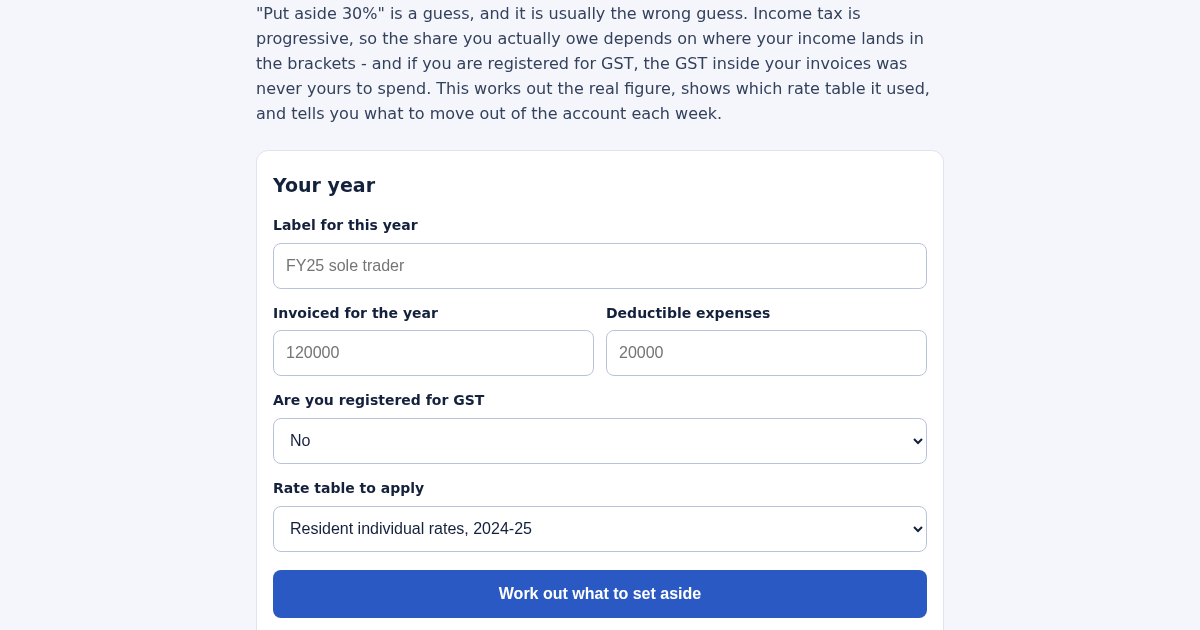
- Label the year, for example "FY25 sole trader".
- Enter what you invoiced and your deductible expenses.
- Say whether you are registered for GST - if you are, your invoices include it.
- Read the amount to set aside, and the weekly figure to move to a separate account.
What you gain
- Calculates the real percentage of income an Australian sole trader should set aside for tax, bracket by bracket, instead of the flat 30% rule of thumb that usually sets aside the wrong amount.
Screenshot
Technical details
How to set up & use
- Buy the license — your key (lic_...) appears on the order page and in your email.
- Sign in at app.synoriaai.com with your license key.
- No installation — the product runs in your browser, on your own isolated instance.
- Enter a label for this calculation (e.g., 'FY25 sole trader') so you can identify it later.
- Type your total business income and deductible expenses in dollars.
- Choose whether you're GST-registered (if yes, the tool will handle GST on invoices and credits).
- Click the calculate button to see your set-aside percentage and dollar amount, plus a breakdown by tax bracket.
- Review the weekly and monthly amounts shown, which are what you'd actually move to a separate account.
Frequently asked questions
Is my financial data safe?
Yes, all calculations happen in your browser. No data is sent to or stored on our servers.
Does this tool file my tax return or give legal advice?
No, it only calculates a suggested set-aside amount based on the figures you enter. It doesn't lodge anything or account for all possible deductions or offsets.
What if the tax rates change?
The tool uses a named rate table and prints that name with every result, so you can see which year's rates were applied and check if they're current.
Related products
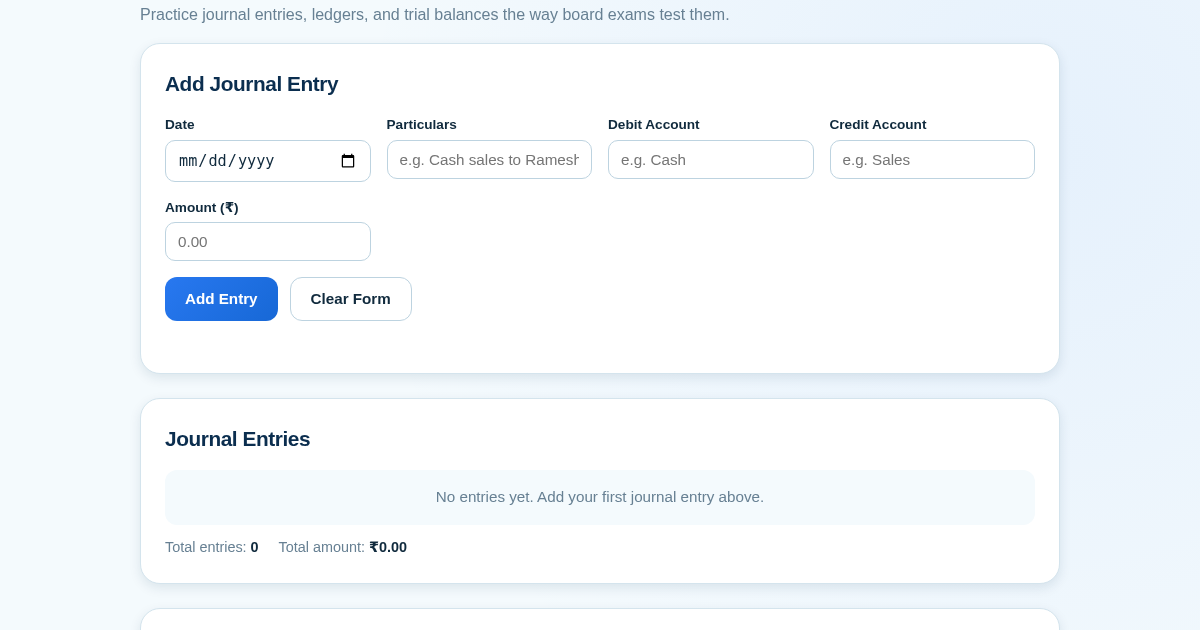
Ledger & Trial Balance Practice Tool
Commerce students in Class 10-12 need to practice journal entries and see how they flow into ledgers, trial balances, and balance sheets for board exams. This tool lets them enter transactions and instantly see the…
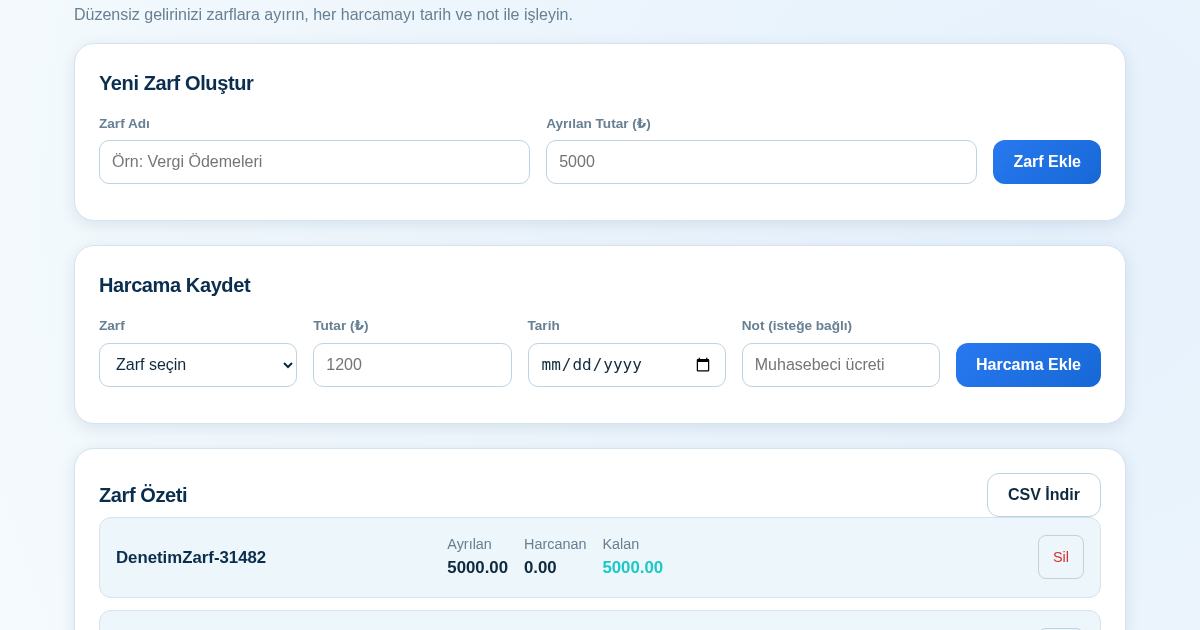
KASA - Serbest Çalışanlar İçin Zarf Bütçesi
Serbest çalışanlar düzensiz gelirlerini vergi, kira ve yaşam giderleri gibi zarflara bölerek bütçelerini düzenli tutabilir. Her harcamayı tarih ve not ile ilgili zarfa işleyerek ne kadar ayırdığını ve ne kadar…
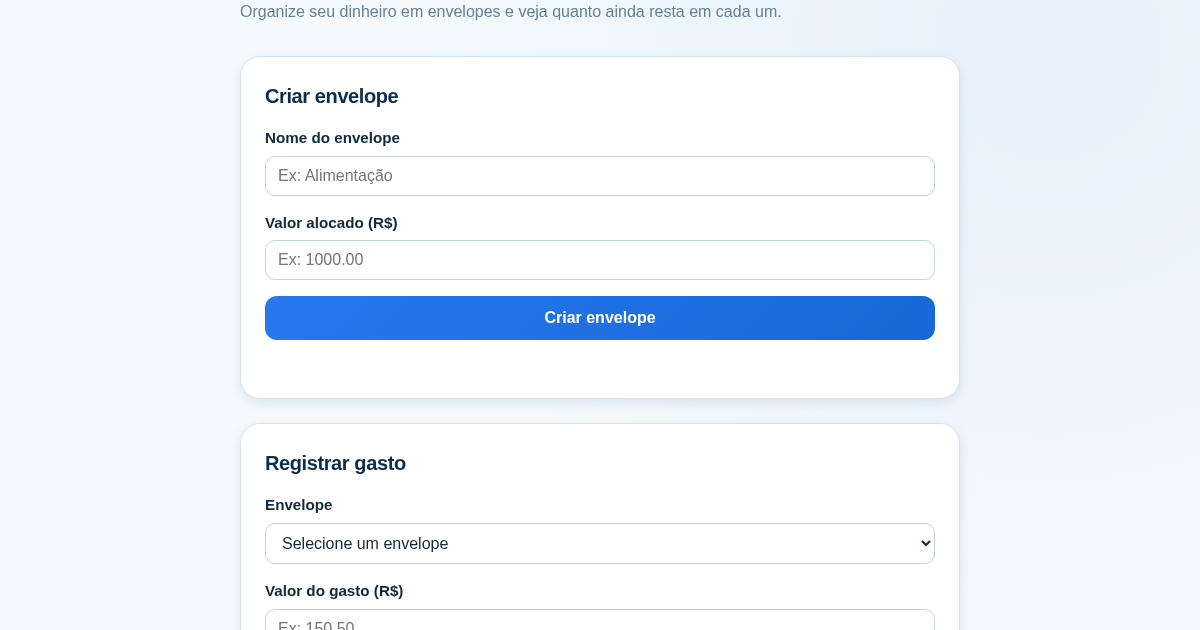
Calculadora de Orçamento por Envelopes (Pix)
Este aplicativo ajuda brasileiros a organizar seu dinheiro em envelopes de orçamento, como alimentação, transporte e lazer, sem precisar conectar uma conta bancária. Ele resolve o problema de controlar gastos do dia a…
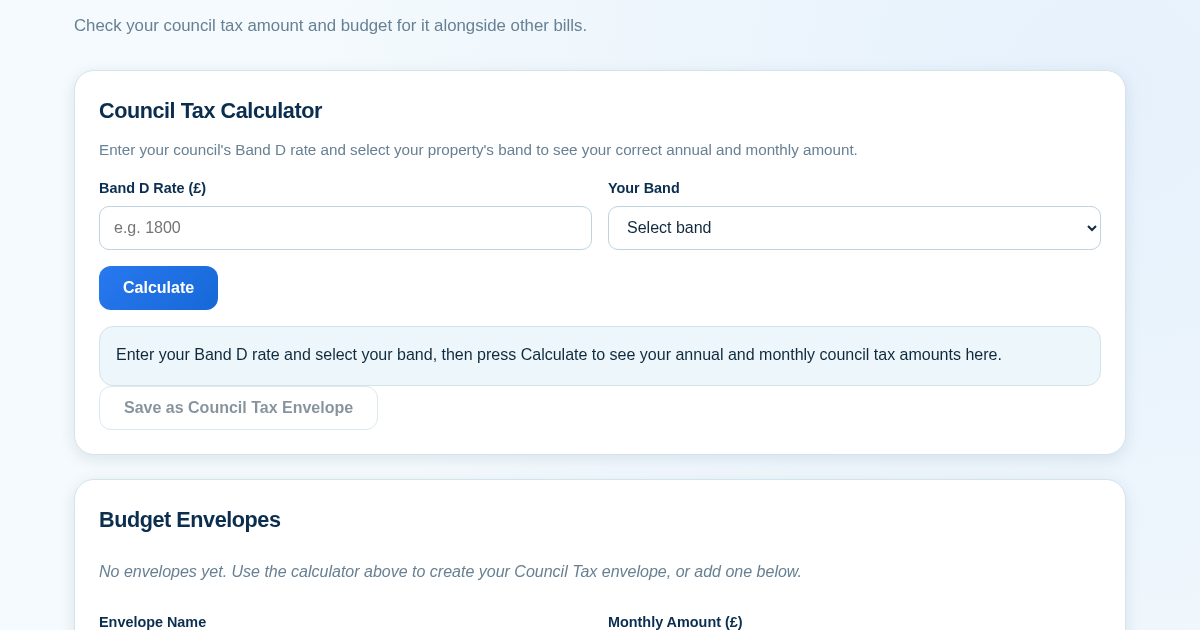
Council Tax Envelope Budget
This app helps UK residents verify they are paying the correct council tax amount for their property band by calculating it from their council's published Band D rate. It then provides a simple envelope-based budgeting…